

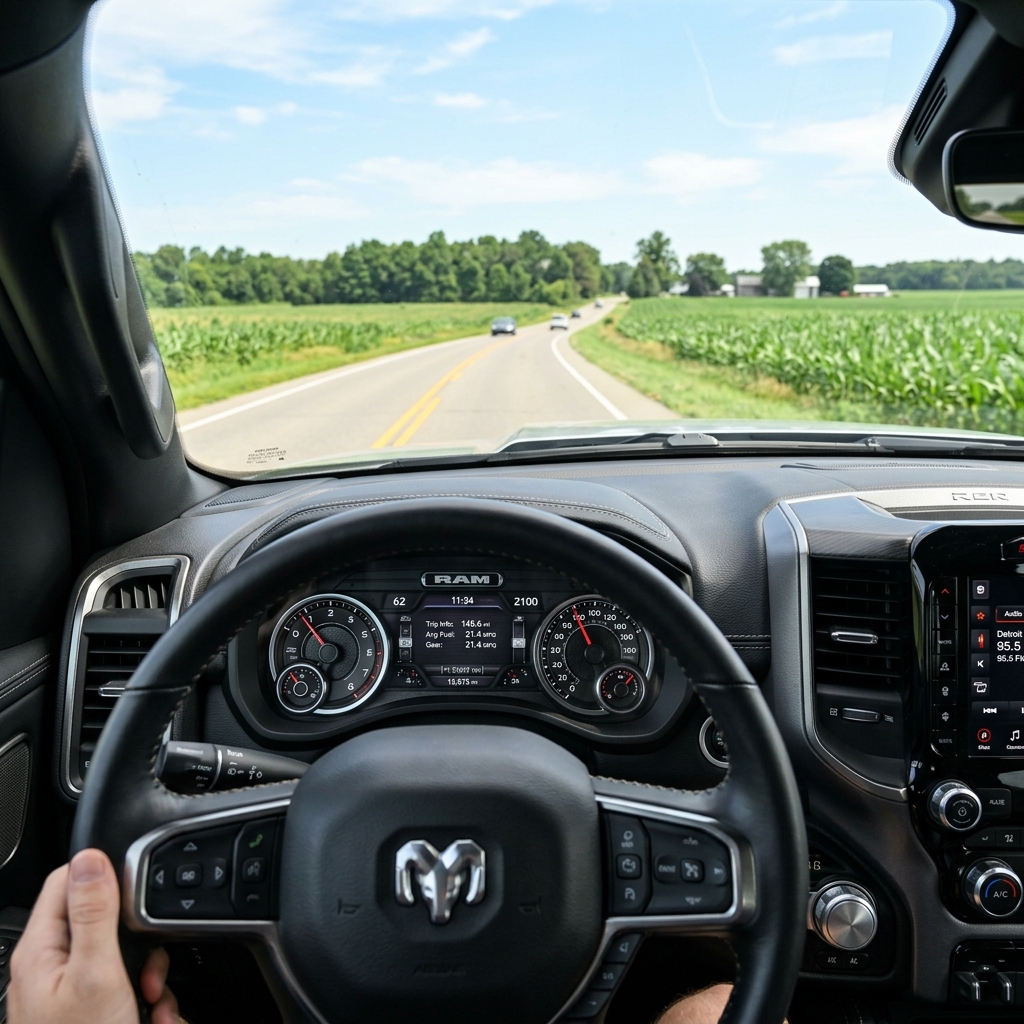
To turn off navigation directions in the main instrument cluster on a Ram truck, use the left-side steering wheel arrows to scroll to Screen Setup or Driver Info Display, select the active display zone currently showing Navigation, and switch it to another layout such as Audio, Trip Info, or Blank. Canceling the active destination on the center Uconnect 5 touchscreen also clears turn-by-turn prompts from the gauge cluster immediately.
The digital gauge layout on modern Ram trucks gives drivers complete authority over what appears in their primary line of sight. On vehicles equipped with the 12.3-inch digital cluster or the standard digital driver display, automatic turn-by-turn pop-ups can occupy the center screen or upper cluster tiles whenever route guidance is active. If you prefer to view traditional tachometer gauges, trip data, or transmission temperatures without visual interruptions, adjusting the display zone settings isolates navigation to the main central touchscreen.
Changing these preferences requires only a few button presses using the four-way arrow pad on the left spoke of the steering wheel. Scroll vertically to access the main cluster setup menu, then enter the submenu labeled Screen Setup or Display Configuration. Highlight the specific tile zone—such as Upper Left, Upper Right, or Center—that is currently designated for turn-by-turn arrows, and select a non-navigation option. If you want to keep navigation active on the main dashboard display for long highway drives, changing the cluster preference leaves center-console routing fully functional while freeing up the driver display.
When driving through rural terrain near Onsted, maintaining clear gauge visibility for towing parameters, payload status, or fluid temperatures is often more practical than viewing turn arrows for familiar local roads. If you need step-by-step assistance setting up your digital driver display or pairing your smartphone, our technicians at our Clinton showroom address can walk you through every menu setting in person, or you can give our team a call at (517) 456-6555 for quick guidance over the phone.
Table of Contents
- How Do You Turn Off Turn-by-Turn Directions and Cancel Routes in Ram Uconnect?
- Does Apple Maps Show Turn Arrows and What View Options Exist on the Ram 12.3-Inch Digital Cluster?
- What Is the Difference Between Muting Directions and Stopping Navigation Entirely?
- How Do You Reset a Ram Navigation Display If Prompts Reappear After a Reboot?
- Common Questions About Ram Cluster Display Settings and HUD Navigation
- Get Expert Ram Technology Support at NewGen Chrysler Dodge Jeep Ram
How Do You Turn Off Turn-by-Turn Directions and Cancel Routes in Ram Uconnect?
The Uconnect 5 navigation app allows you to cancel active routes, effectively turning off turn-by-turn directions on both the instrument cluster and center console display. On the central touchscreen, tap the map display, select the Nav Menu or red X icon, and tap Cancel Route to end active guidance across all vehicle screens.
Understanding the relationship between the central infotainment screen and the driver display is key to managing navigation prompts. The Uconnect 5 system feeds live turn information to the instrument cluster whenever a destination is programmed, whether using built-in Mopar navigation or phone mirror platforms like Apple CarPlay and Android Auto. Turning off cluster pop-ups in vehicle settings hides the arrows on your gauge display, but the route remains active on the main dashboard screen until it is manually stopped.
For drivers who want to keep route tracking active on the center screen while hiding turn-by-turn alerts in the cluster, follow these steps using steering wheel controls and touchscreen menus:
- Press the Nav icon on the bottom ribbon of the central touchscreen to open full-screen mapping.
- Tap the active route bar or the menu icon on the map screen, then press Cancel Route or tap the X symbol to stop guidance.
- To keep the route running on the center screen but remove arrows from the driver display, press the left steering wheel controls to enter Screen Setup.
- Scroll to Nav Pop-ups or Turn-by-Turn Display and toggle the setting to Off.
- Confirm the setting change to prevent future turn notifications from overriding your tachometer or vehicle status tiles.
If you are exploring our detailed Uconnect technology guide to understand how different software generations behave, keep in mind that menu names vary slightly across model years. Whether you drive a Ram 1500 Tradesman, a luxurious Ram 1500 Tungsten, or a heavy-duty Ram 2500 Laramie, disabling cluster turn prompts does not affect rear-passenger screens or audio playback. Buyers evaluating options across our pre-owned vehicle selection will find similar menu structures on late-model Dodge and Chrysler vehicles equipped with digital instrument panels.
Does Apple Maps Show Turn Arrows and What View Options Exist on the Ram 12.3-Inch Digital Cluster?
Yes, Apple Maps connected through wireless Apple CarPlay displays turn-by-turn directional arrows, street names, and distance calculations directly inside the center section of the 12.3-inch digital cluster on modern Ram trucks. The high-resolution display supports multiple full-screen layout modes, allowing drivers to customize how navigation, vehicle status, and traditional gauges are presented.
The available full-screen and tile view configurations on the 12.3-inch digital cluster include:
- Full-Screen 3D Navigation Map: Displays a continuous topographical or street-level map render across the entire instrument panel, minimizing gauge dial sizes.
- Driver Assistance Status: Shows active adaptive cruise control tracking, lane centering positions, and blind-spot monitoring visuals in real time.
- Off-Road and Towing Gauges: Displays pitch, roll, steering angle, transfer case status, trailer brake gain, and transmission fluid temperatures.
- Audio and Media Display: Features full album artwork, radio station details, and playlist tracking across the central gauge cluster area.
- Traditional Digital Gauges: Presents classic analog-style speed and tachometer dials flanked by customizable digital data tiles in the corners.
When projected through Apple CarPlay or Android Auto, directional instructions integrate directly into the cluster graphics engine. If you prefer to view off-road gauges or trailer brake parameters while commuting to Jackson or traveling near Michigan Center, disabling turn prompts in the Screen Setup menu prevents phone navigation pop-ups from hijacking your cluster views. Drivers shopping through our certified pre-owned inventory can test these display modes during a walkaround to see how different screen sizes handle smartphone mapping integrations.
What Is the Difference Between Muting Directions and Stopping Navigation Entirely?
Muting directions silences spoken voice prompts from the vehicle speakers while keeping active route lines and turn-by-turn arrows visible on both the center touchscreen and the driver cluster display. Stopping navigation cancels the active destination altogether, clearing all route graphics, turn arrows, and distance estimates from every screen in the truck.
Many truck owners mute audio prompts during highway trips to prevent voice instructions from interrupting music, phone calls, or cabin conversation. However, muting audio does not stop the Uconnect system from generating visual pop-ups in the gauge cluster as you approach highway exits or turn junctions. If the visual prompts themselves are creating a distraction on your dashboard, muting the volume will not resolve the issue.
To completely clear visual arrows while keeping voice guidance or background map tracking, you must distinguish between audio controls and display preferences:
| Action | Audio Prompts | Center Screen Map | Cluster Turn Arrows |
|---|---|---|---|
| Mute Voice Guidance | Silenced | Active Route Shown | Turn Arrows Visible |
| Disable Cluster Nav Pop-ups | Active | Active Route Shown | Hidden / Suppressed |
| Cancel Route Navigation | Silenced | Map Returns to Free-Drive | Cleared Completely |
If your instrument cluster displays persistent navigation alerts despite turning off guidance settings, a software glitch or pending map update could be forcing the prompt to refresh. You can schedule a service appointment online with our factory-trained technicians to inspect your Uconnect software version. If you are considering upgrading your current truck to a newer trim with full display customization, our team can help you request a trade-in valuation to see how much your vehicle is worth today.
How Do You Reset a Ram Navigation Display If Prompts Reappear After a Reboot?
To reset a Ram navigation display when directions continuously reappear after a system reboot, perform a Uconnect soft reset by pressing and holding the power and tuner knobs simultaneously for 10 to 15 seconds until the screen turns black and restarts. If the issue stems from an interrupted over-the-air map update, installing a dealer USB firmware update clears the boot loop and restores normal screen settings.
Repeated navigation pop-ups often occur when a background map update fails to finalize, causing the system to reload the last active navigation state every time the ignition turns on. In other cases, an active route running in a background application on a paired smartphone re-initiates cluster directions as soon as Apple CarPlay or Android Auto connects wirelessly.
Follow these troubleshooting steps to resolve persistent cluster navigation prompts:
- Disconnect all paired mobile devices and turn off Bluetooth on your phone to verify if a background smartphone app is sending route data.
- Turn the truck ignition to ON, press and hold the center volume/power knob and tuner knob together for 15 seconds, and release when the Ram logo appears.
- Access the Uconnect Settings menu, select System Information, and check for failed map update notifications.
- Open Display Settings, toggle Navigation Pop-ups to OFF, and turn the vehicle ignition off for 5 minutes to let the body control module sleep.
- If prompts continue upon startup, bring the truck to an authorized dealership to perform a Mopar USB map software reflash under Technical Service Bulletin procedures.
Addressing software glitches ensures your truck’s tech features perform reliably on every trip. Drivers planning their next vehicle purchase can apply for financing online to review flexible payment options and competitive rate structures tailored to fit their monthly budget.
Common Questions About Ram Cluster Display Settings and HUD Navigation
Q: Can you turn off turn-by-turn directions on the Ram Head-Up Display (HUD)?
Yes, turn-by-turn directions can be disabled on the Head-Up Display independently of the main gauge cluster. Using the left steering wheel directional pad, scroll to the Head-Up Display menu in the instrument cluster display, select HUD Setup, and navigate to Content Display. From there, uncheck or toggle off the Navigation / Turn-by-Turn option. This removes directional arrows from your windshield projection while keeping vehicle speed, speed limit signs, and driver-assist safety warnings visible.
Q: Why do navigation directions keep appearing on my gauge cluster even when turned off?
Navigation directions continuously pop up on the gauge cluster if an active route is still running in a smartphone navigation app through wireless Apple CarPlay or Android Auto. Even if native Uconnect navigation is inactive, connected phone apps override cluster preferences unless Nav Pop-ups are explicitly disabled in the Screen Setup menu. Ending the route inside Apple Maps or Google Maps on your phone will also clear the persistent prompts immediately.
Q: What engine options are available on the 2026 Ram 1500?
The 2026 Ram 1500 offers advanced twin-turbocharged inline-six engines alongside the proven V6. Options include the 3.6L Pentastar V6 with eTorque mild-hybrid assistance generating 305 hp and 271 lb-ft of torque, the Hurricane Standard Output 3.0L Turbo I-6 producing 420 hp and 469 lb-ft of torque, and the high-performance Hurricane High Output 3.0L Turbo I-6 delivering 540 hp and 521 lb-ft of torque. All engines pair with a smooth-shifting 8-speed TorqueFlite automatic transmission.
Q: How do I access the Screen Setup menu on a Ram digital cluster?
To open Screen Setup, use the four-way arrows on the left side of the steering wheel to scroll vertically through the main driver information categories until you highlight Screen Setup. Press the OK button in the center of the arrow pad to enter the menu. From there, select the specific cluster location you wish to modify—such as Upper Left, Upper Right, Center, or Defaults—and press OK to assign your preferred data widget. You can learn more about our dealership team and our technology support services by visiting our store.
Q: Does disabling cluster navigation affect Mopar factory warranty coverage or system software?
Changing display preferences in your digital instrument cluster or Uconnect system is a standard user configuration feature and has no impact on your Mopar factory warranty. The standard 3-year / 36,000-mile bumper-to-bumper warranty and 5-year / 60,000-mile powertrain warranty cover all electronic control modules, touchscreens, and digital cluster displays against manufacturing defects. If you ever need replacement components or technical accessories, you can order genuine Mopar parts directly through our certified service department.
Get Expert Ram Technology Support at NewGen Chrysler Dodge Jeep Ram
Customizing your Ram truck's digital cluster and Uconnect system ensures a seamless, distraction-free driving experience whether you are hauling equipment on the job site or heading out for weekend adventures. If you need assistance configuring your display settings, troubleshooting navigation pop-ups, or exploring the latest features on the 2026 Ram 1500 and 2026 Ram 2500, our expert team is here to help.
Shopping at NewGen Chrysler Dodge Jeep Ram of Clinton is car buying the way it should be: fun, informative, and fair. We offer transparent pricing, pressure-free customer service, and flexible financing options tailored to your budget. Visit us in person at 1111 W Michigan Ave, Clinton, MI 49236, give our team (517) 456-6555 to speak with a technology specialist, or explore our new Chrysler Pacifica lineup and full Ram truck inventory online to schedule your test drive today.
© 2026 NewGen Chrysler Dodge Jeep Ram of Clinton. All rights reserved.